
QR ORDERING
QR ordering and multilingual mobile ordering
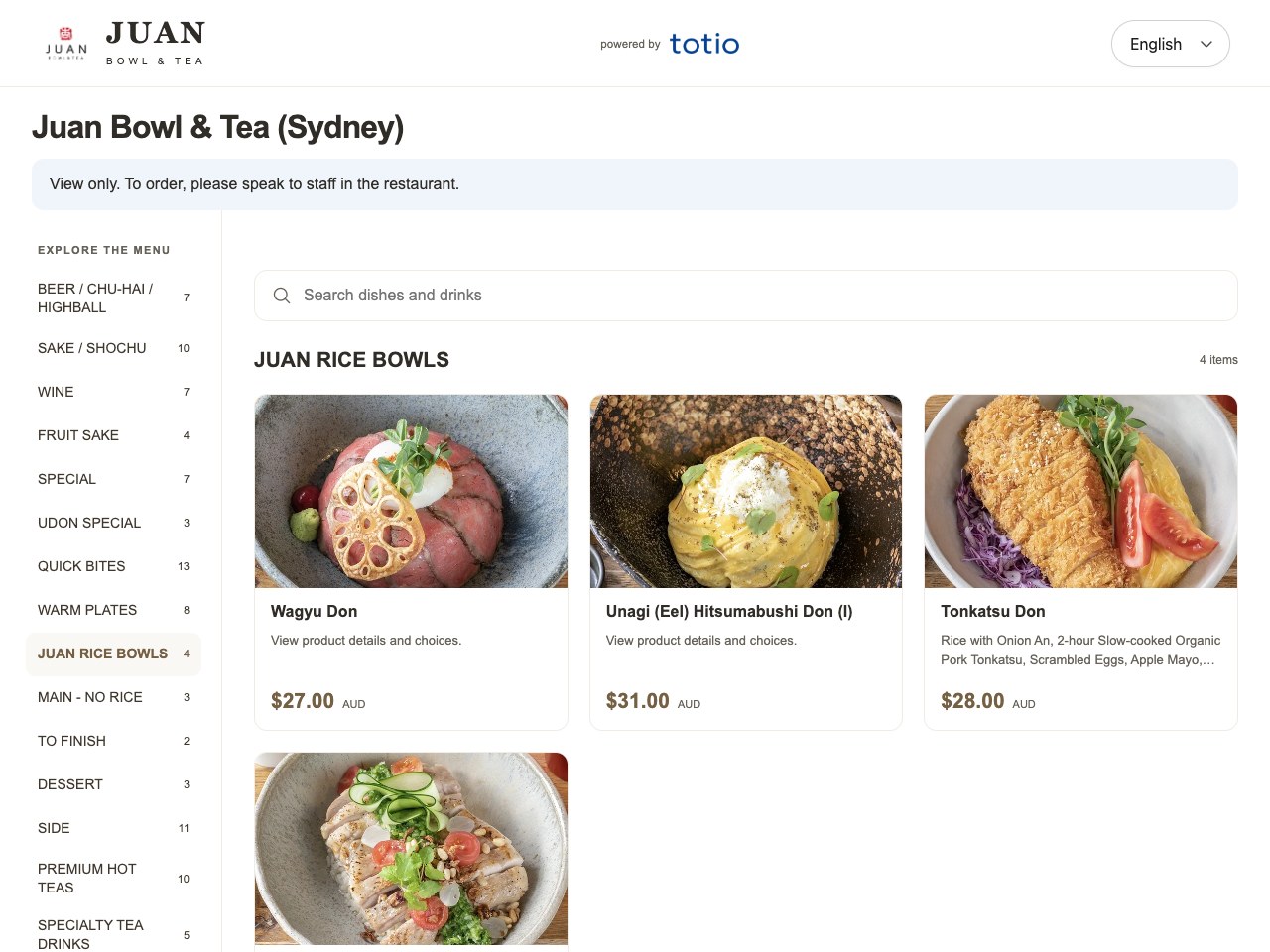
Customers can browse the menu and place orders directly from their own smartphones. At JUAN Bowl & Tea, they can switch between English, Japanese and Traditional Chinese.
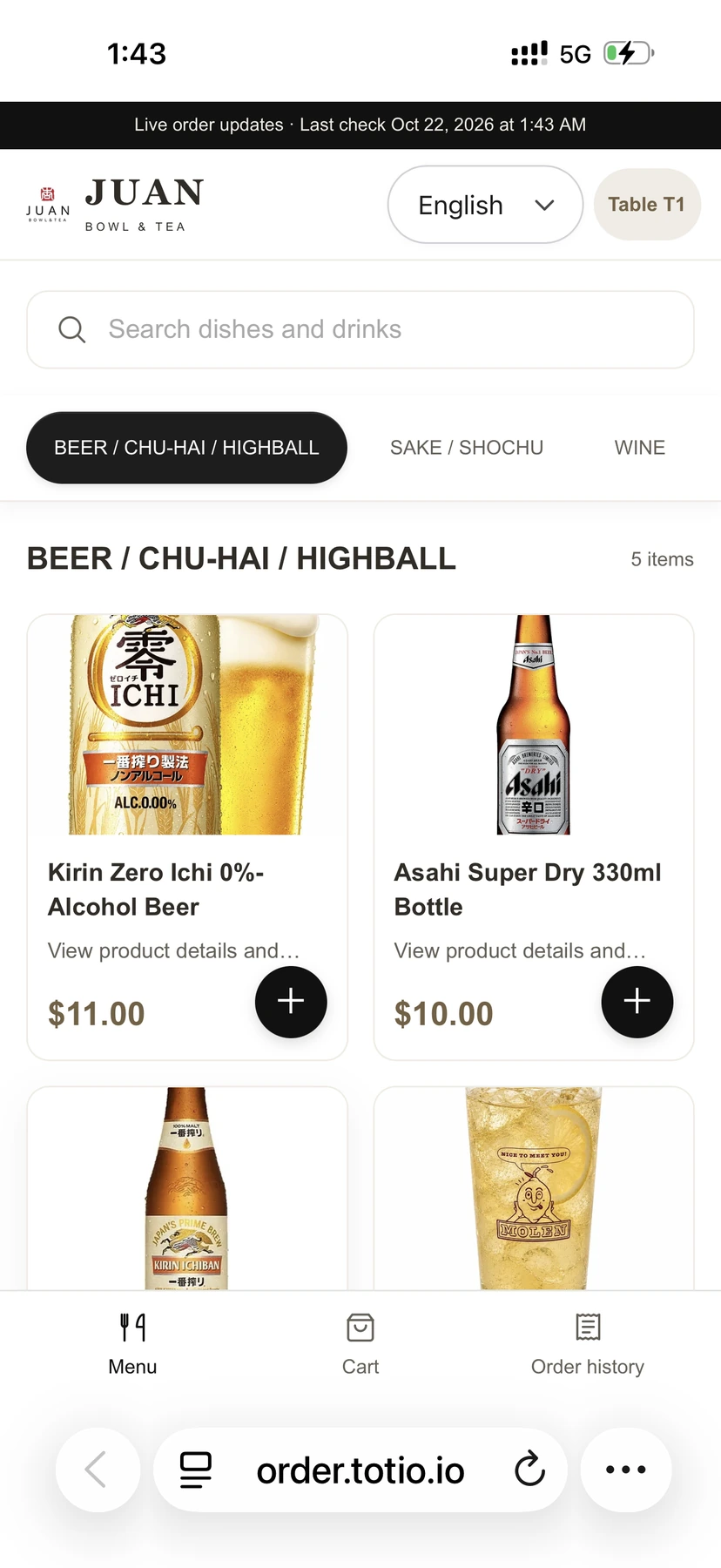
STEP 1Browse the menu 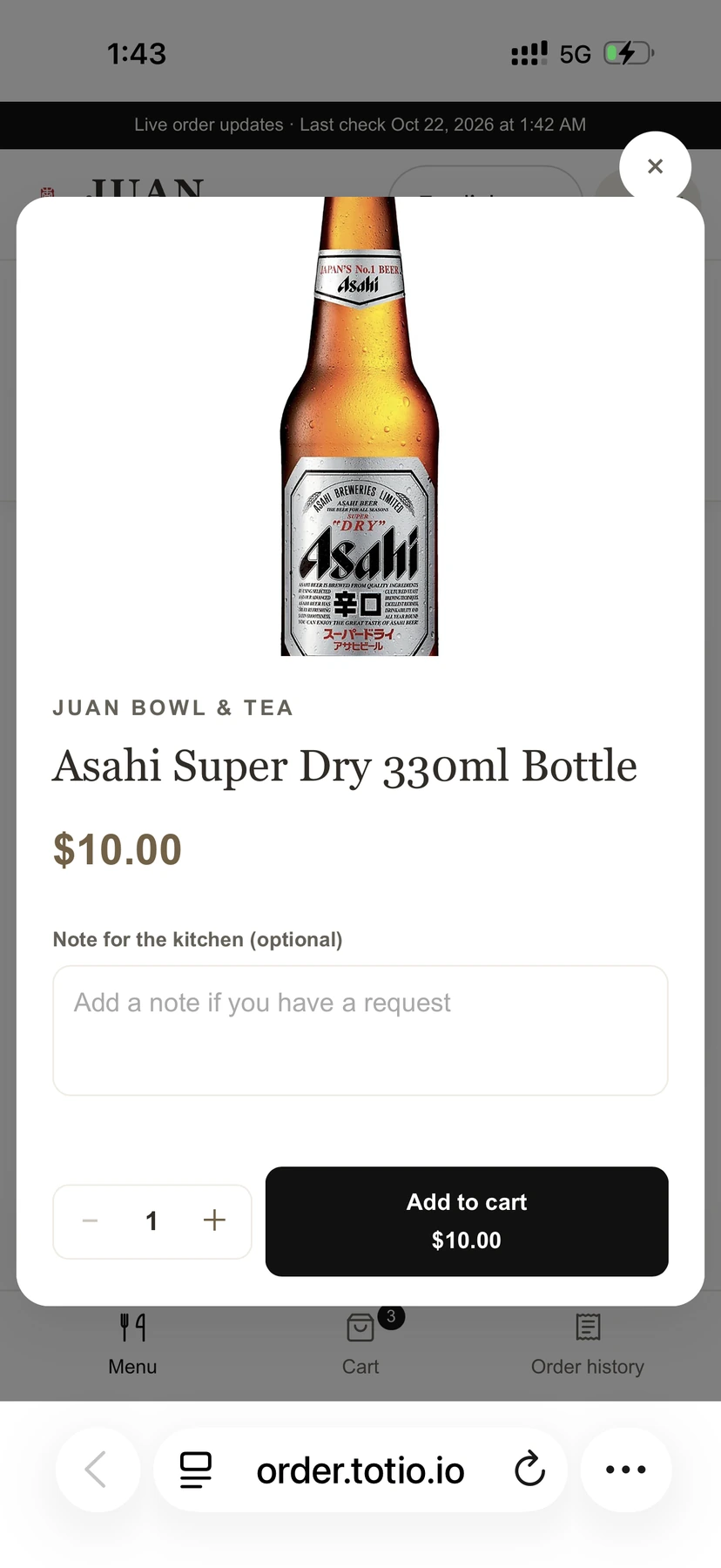
STEP 2Choose items and quantity 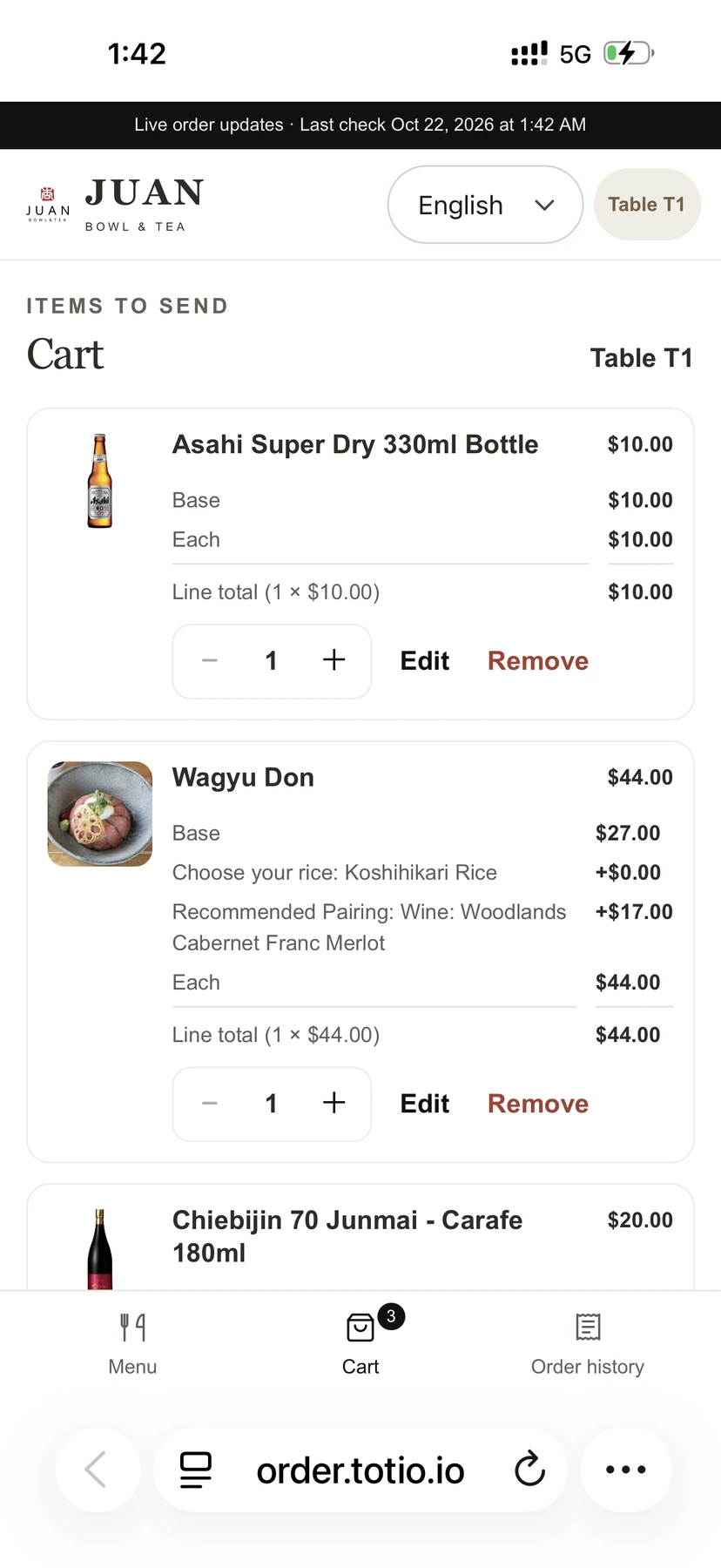
STEP 3Review the cart and place an order 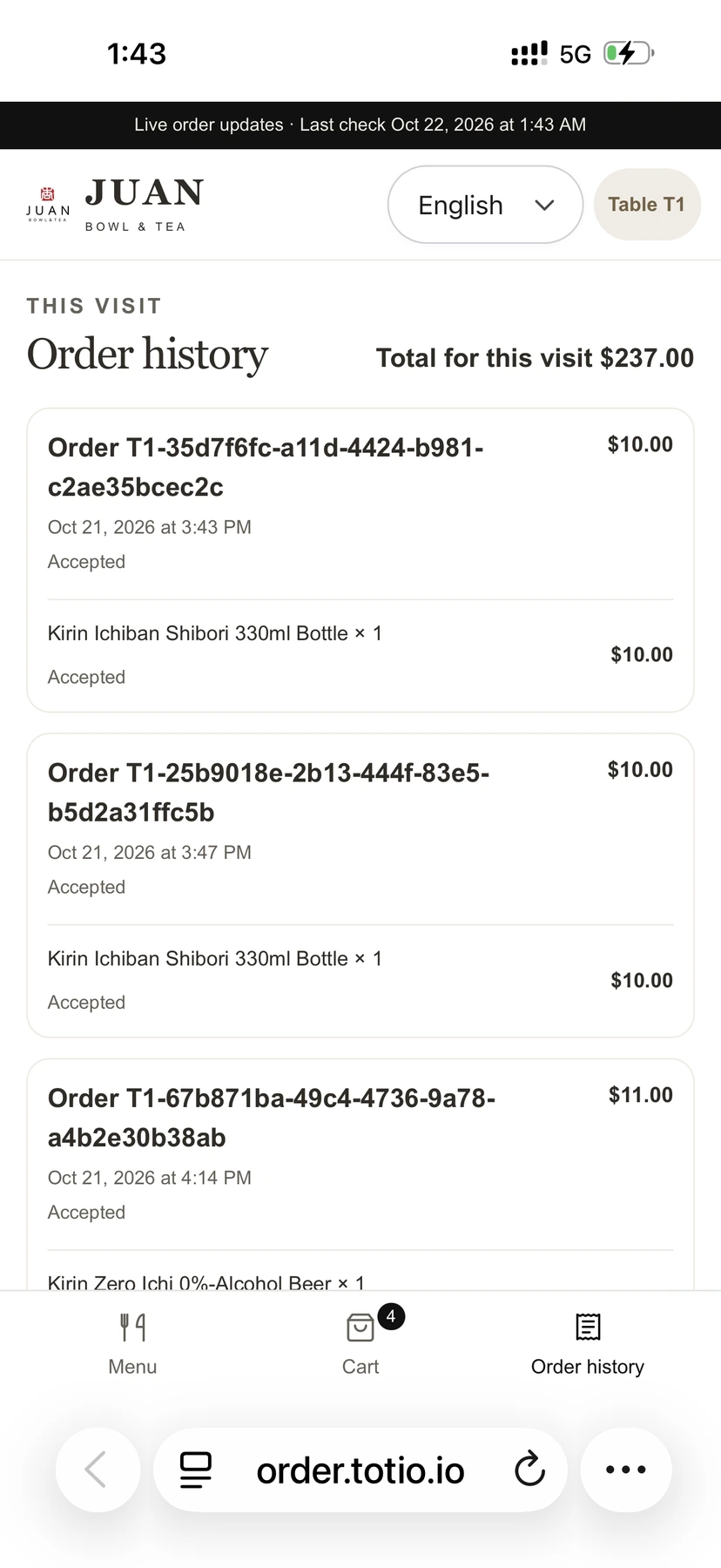
STEP 4View order history
QR ordering developed for JUAN. Items, prices and order details shown are from the time of capture.
Select a screen to enlarge it.
Benefits of QR ordering
- No app required. Guests scan the QR code at their table and order directly in their phone browser.
- Guests can read dish descriptions and options in a language they understand.
- Reduce manual order taking and entry to ease staff workload and help control labour costs.
- Staff can easily update menus, prices and availability, including sold-out items, from their dashboard.
- Use order data to identify bestsellers and make informed changes to your menu and operations.
By default, guests pay at your existing register.
This is an independently developed and operated mobile ordering service for restaurants. Implementation terms are reviewed separately from booking and website translation.
AI cart recommendations
Recommendations that learn from your venue.
Before customers open their QR ordering cart, show product recommendations that learn from your venue’s order history.
- Based on what customers order
Recommendations consider bestsellers and the items in the cart.
- Weather and time of day, too
The system learns from weather, season, temperature, menu language and time of day, such as lunch or dinner.
- Control settings and review results
Switch recommendations on or off for each venue, and use the staff screen to review orders from recommendations and their effect on sales.
What we check for your business.
- Dish names, prices, options and languages
- Tables, staff devices, kitchen and printing
- Connectivity and fallback procedures
- Checkout method, POS integration and added payments
Supported payment providers
Stripe (via Stripe Connect) processes online card payments.
Eligible locations can link their Stripe account and enable payments for table QR checkout and prepayment on online pickup orders.
Staff can record payments taken on the store’s card terminal in totio Order.
Card brands supported by Stripe
 Visa
 Mastercard
 American Express
 JCB
 Discover
 Diners Club
 UnionPay
Available brands depend on the store’s Stripe account country, settings and payment currency.
For Australian Stripe accounts, the main brands are Visa, Mastercard, American Express, JCB and UnionPay. For Japanese Stripe accounts, Discover and Diners Club payments must be in Japanese yen.
UnionPay is available to Stripe accounts registered in eligible countries, including Australia.
Stripe’s country and region requirements
Digital wallets
 Apple Pay
 Google Pay
Apple Pay and Google Pay may appear on the Stripe checkout page when eligible. Availability depends on the store’s Stripe settings and the customer’s country or region, device, browser, and wallet setup.
Setup and operating costs

Setup costs
We’ll quote store and menu setup and onboarding support according to your implementation.

Monthly subscription
We quote totio Order’s monthly fee based on the features you use and the number of locations.
Request a quote
Equipment costs
If you need additional devices or printers, costs depend on what you already have and what your setup requires.
View QR ordering equipment
Payment processing fees
Online processing fees depend on the store’s Stripe account country and agreement.
How it works
- Discuss onboarding and register your store
- Set up your store, menu and QR codes
- Link the eligible store’s Stripe account and complete any required verification
- Enable payments in store settings and start accepting QR orders and payments

New to totio Order

Need help using totio Order?
LET’S START SMALL
First, tell us
about your business.
Start with a website URL or a menu.
Together, we’ll clarify what you need.
Sending an enquiry does not create a contract or payment.